
- Administration
- Organization settings
- Manage mobile app PIN authentication for your organization
Manage mobile app PIN authentication for your organization
earn how to turn PIN setting on mobile on or off, set PIN length, and choose an automatic lock time via the web app to protect company data on mobile devices.How does a mobile PIN keep your data safe?
A mobile PIN adds a layer of security to the SafetyCulture mobile app, protecting inspections, photos, and reports if a device is shared or lost. Turn PIN requirement on from the web app, and users are prompted to set up a PIN the next time they open the app.
You can set the PIN length and lock period to match your organization's policy. This ensures stronger protection across your team's devices without needing to manage PIN setup manually for each user.
What can I see when PIN is required?
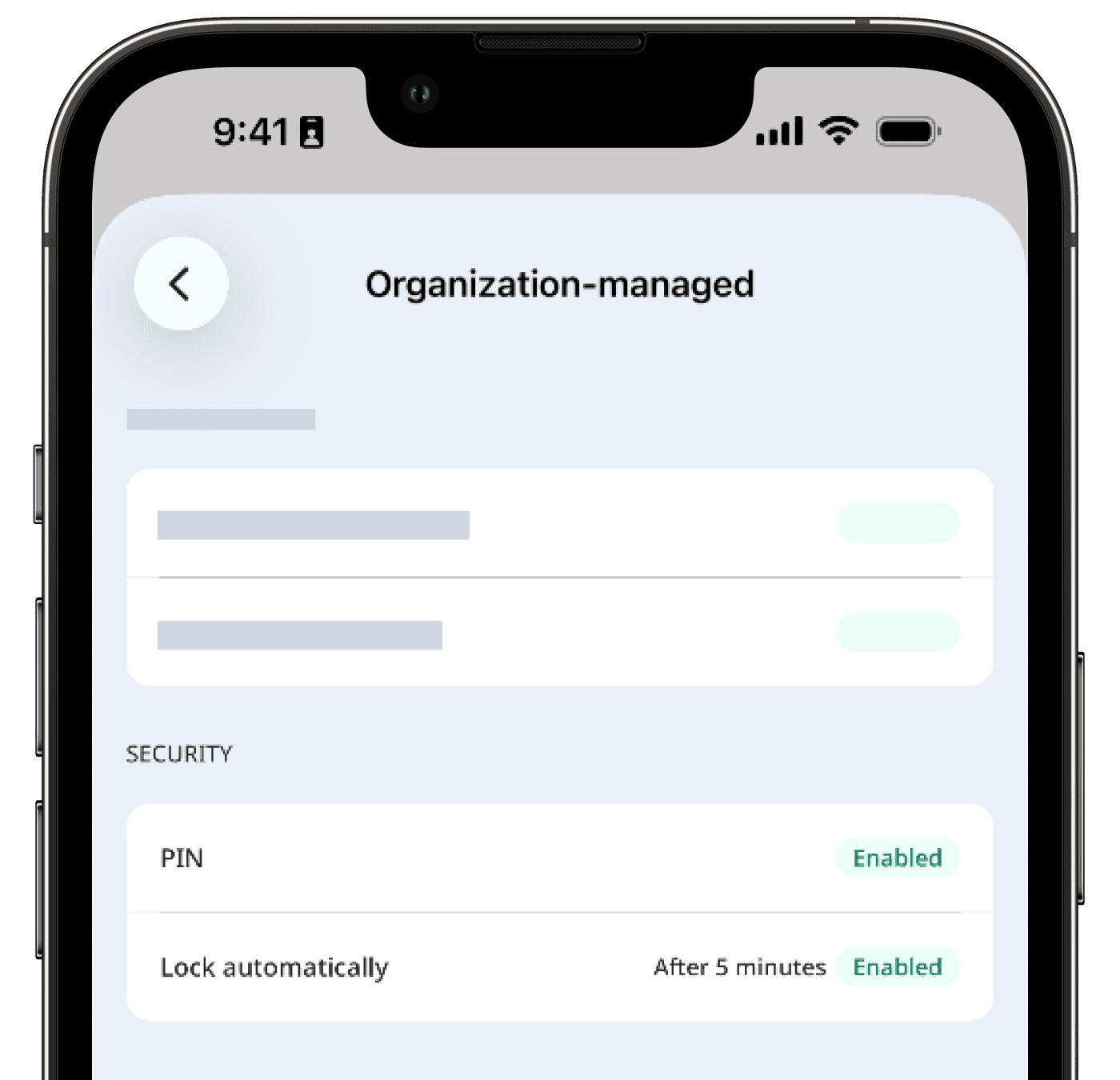
When you turn the PIN setting on, all users in your organization are prompted to create a PIN the next time they open the SafetyCulture mobile app. The PIN and Lock settings move to the Organization-managed section in Settings. Biometric options, such as Face ID or fingerprint, remain available where supported. Here's what to expect when the PIN setting is on:
Three incorrect PIN attempts automatically log the user out of the app.
Logging out of the app deletes the saved PIN.
If a user belongs to multiple organizations, they may be prompted to set up a PIN when switching to an organization with this setting turned on.
If PIN setup is interrupted, the user needs to log in again to complete the setup.
The prompt may not appear immediately if the app is already open. Users on mobile app version 26.10 and above will see the prompt when they log in, switch between organizations, or reopen the app after a force close.
Turn PIN setting on mobile on or off
Click your organization name on the lower-left corner of the page and select Organization settings.
Select Security at the top of the page.
In the "Mobile app security" section, turn "Require PIN authentication" on or off.
When turning the setting on, configure the PIN settings accordingly.
PIN complexity: Click the dropdown list and select the required length of users' mobile PIN.
Automatically lock mobile app: Click the dropdown list and select the inactivity period before requiring users to enter their PIN again.
Limitations
Administrators cannot see which users have set up their PIN.
The PIN requirement only applies to users on mobile app version 26.10 or above. Users on older versions are not affected.
Frequently asked questions
No. Users will still need to log in using SSO to access their account. The PIN requirement simply adds an extra layer of security on the device.
The setting only enables the PIN requirement for your organization. However, users can choose to turn biometrics on (like fingerprint or Face ID) on their device if they prefer.
If a user forgets their PIN on the SafetyCulture mobile app, they can tap Forgot your PIN? on the lock screen and follow the prompts to log back into their account. Once they’ve signed in, they can set a new PIN.
Yes, users will be able to see when the setting through the  Organization-managed tab under
  Settings on the mobile app.
The new complexity requirement only takes effect the next time a user logs in. Users who are already logged in won't be prompted to update their PIN until they log out and log back in.
The PIN requirement only applies to users on mobile app versions 26.10 and above. Users on older versions are unaffected and they won't see any prompts to create a PIN.
Was this page helpful?
Thank you for letting us know.