
- Administration
- Credentials
- Download credentials as CSV
Download credentials as CSV
Learn how to download credentials as a CSV via the web app and understand what each column header means so that you can review and manage your team’s workforce compliance more effectively.You can download up to 50,000 credentials at a time. To export specific credentials, apply filters to refine your selection before exporting.
Download credentials as CSV
Click your username on the lower-left corner of the page and select Credentials.
On the "Credentials" page, select the credential type you want to view.
On the credential list page, click
 on the upper-right of the page.
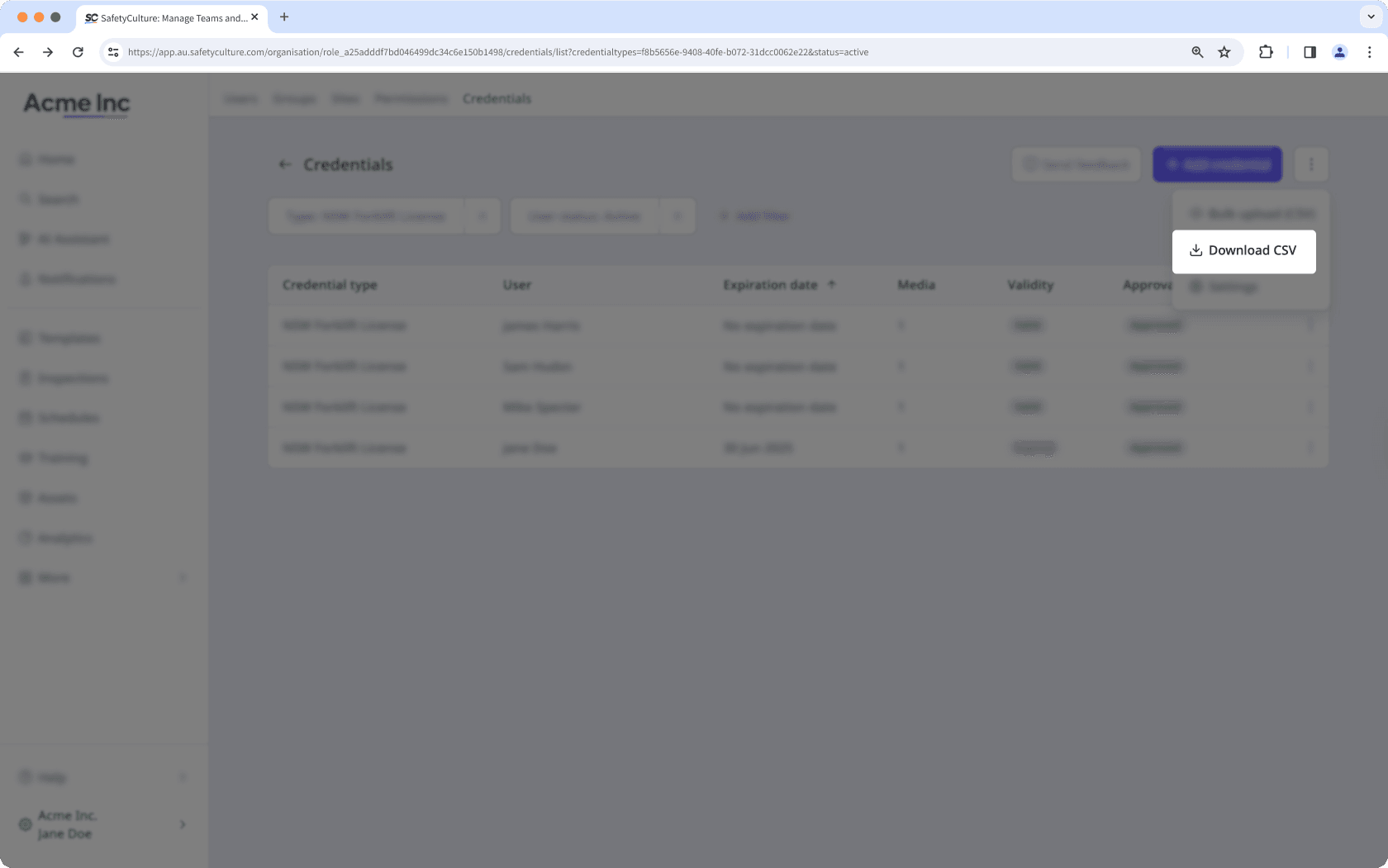
 Click
 Download CSV. This downloads all credentials to CSV, following any applied filters.
CSV column headers
Column header | Description |
|---|---|
Username | The user a credential is associated with. |
The email address of the user associated with a credential. | |
Credential type | The type of a credential. |
Issue date | The issue date of a credential, following your date format setting. |
Expiry date | The expiration date of a credential, following your date format setting. |
Frequently asked questions
This usually happens because of the regional settings in your spreadsheet program. To fix it, set the delimiter to a comma so the values are correctly separated into columns. You can follow the Microsoft Excel guide or the Google Sheets guide to adjust your settings.
Was this page helpful?
Thank you for letting us know.