
- Using SafetyCulture
- Inspections
- SafetyCulture mobile app media settings
SafetyCulture mobile app media settings
Learn about the available photo and video options in the SafetyCulture mobile app to control quality, timestamps, location details, and saving options.Go to media settings
Open the mobile app.
Tap your user profile icon at the upper-right corner of your screen.
In the pop-up menu, select
 Settings.
Scroll to the "Photo Options" or "Video Options" section.
To see all photo and video options, the "media watermarks" setting should be turned off for your organization.
Media settings
PHOTO OPTIONS
Save to Gallery: Save photos taken in SafetyCulture to your device's Gallery.
Add date and time stamp: Add a date and time watermark to photos taken in SafetyCulture.
Add coordinates stamp and metadata: Add a location coordinates watermark and location data to the metadata of photos taken in SafetyCulture. Location setting must be turned on for SafetyCulture.
Select from Files: Upload media from any file location on your device. When turned off, you can only select files from your device's Gallery. This setting is available on some Android devices.
Photo quality: Select the photo quality that works best for you.
Standard: Recommended for a balance between quality, size, and syncing performance.
Original: Highest image quality, with a larger file size that may affect syncing performance.
Low: Smaller file size for faster syncing, with reduced image quality.
VIDEO OPTIONS
Video quality: Select the video quality that works best for you.
Original: Keep the original file size, which may be large and affect syncing performance.
High definition (HD): Compress videos to 720p for the best balance of quality, resolution, size, and syncing performance.
Standard definition (SD): Compress videos to 480p for faster syncing, but some details may be lost due to the quality.
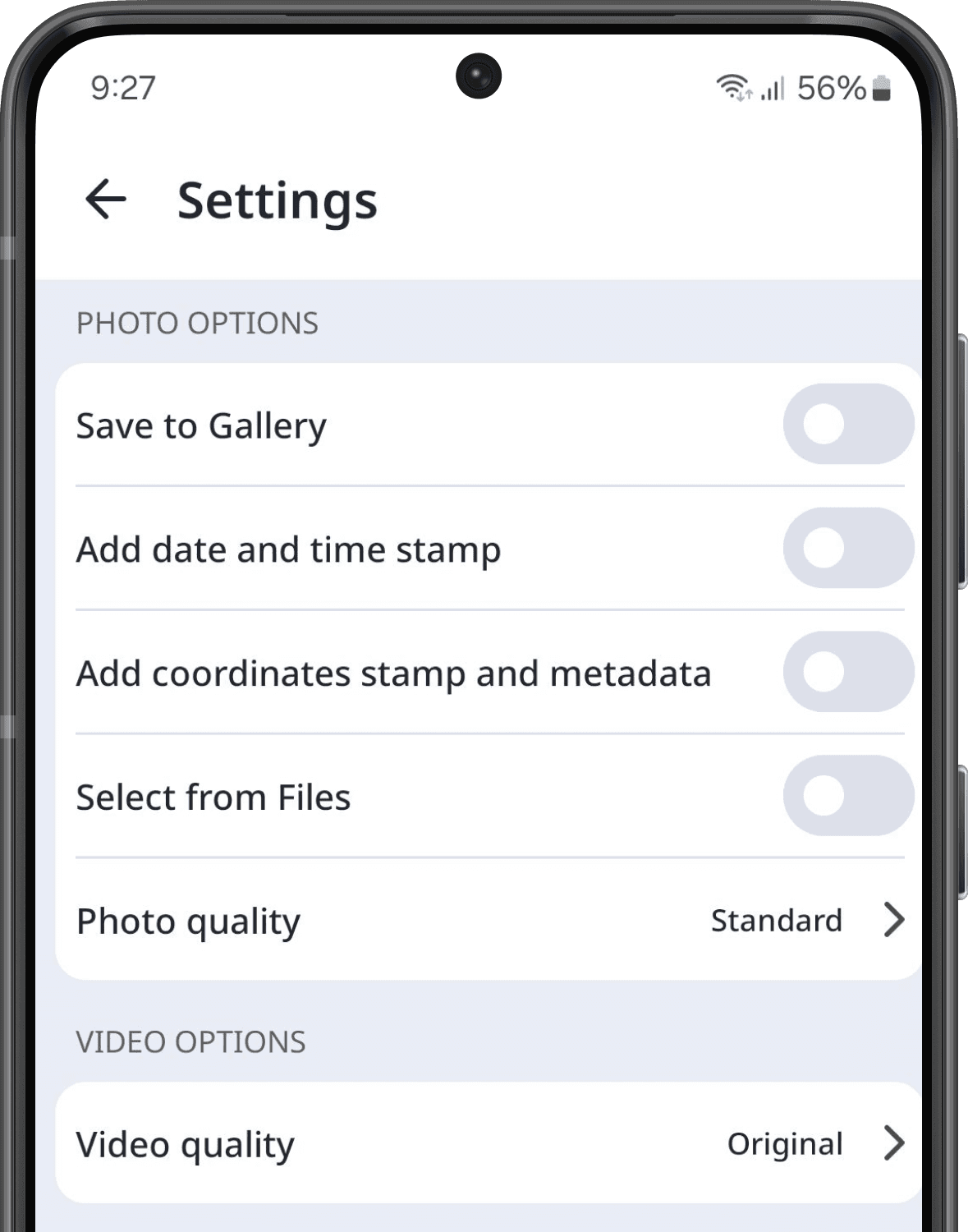
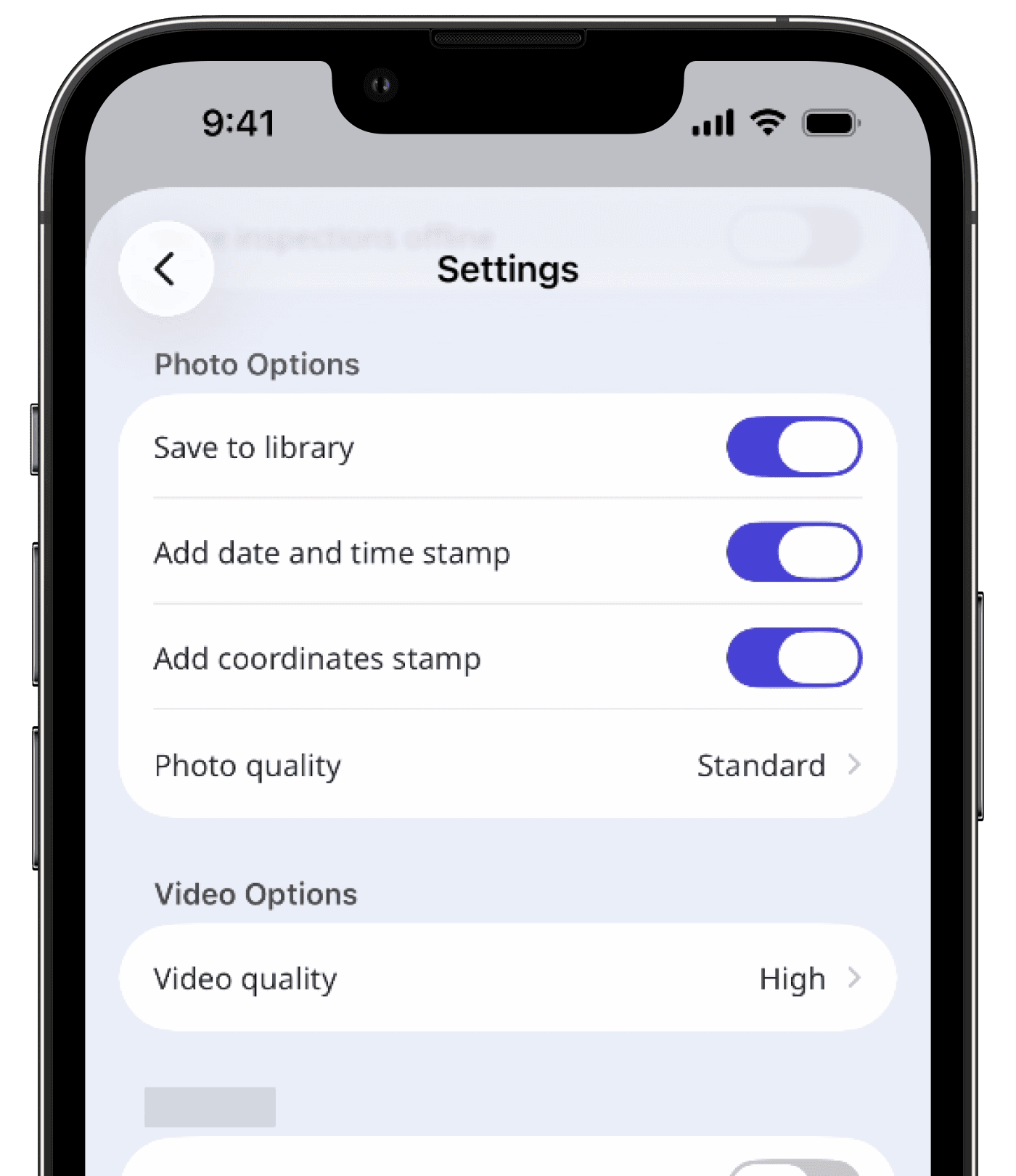
Photo Options
Save to library: Save photos taken in SafetyCulture to your device’s photo library.
Add date and time stamp: Add a date and time watermark to photos taken in SafetyCulture.
Add coordinates stamp: Add a location coordinates watermark to photos taken in SafetyCulture.
Photo quality: Select the photo quality that works best for you.
Standard: Recommended for a balance between quality, size, and syncing performance.
Original: Highest image quality, with a larger file size that may affect syncing performance.
Video Options
Video quality: Select the video quality that works best for you.
Standard definition (SD): Compress videos to 480p for faster syncing, but some details may be lost due to the quality.
High definition (HD): Compress videos to 720p for the best balance of quality, resolution, size, and syncing performance.
Original: Keep the original file size, which may be large and affect syncing performance.
Some of the media settings require giving the SafetyCulture mobile app access to your device's camera and photo library or gallery.
If access is revoked at any time, settings may stop working even if they're turned on.
Was this page helpful?
Thank you for letting us know.