
- Using SafetyCulture
- Sensors
- Sensor self-installation guide
Sensor self-installation guide
Learn how to set up gateways and add, place, and install sensors purchased from SafetyCulture so you can start monitoring them via the web app and mobile app.What are sensors?
Sensors in SafetyCulture automatically track conditions like temperature in fridges, cool rooms, and other critical areas. Instead of relying only on manual checks or paper logs, they send regular readings into SafetyCulture, so your team can see what is happening now, review trends over time, and keep clear records for audits. When you set up alerts, SafetyCulture notifies the right people if readings move outside the range you choose, helping protect stock and equipment day to day.
Each sensor connects to a nearby gateway, which forwards the data to SafetyCulture. Gateways act as the bridge between your on-site devices and your account that collects readings from multiple sensors within range, so you can monitor several locations from one place.

If you already use sensors with SafetyCulture and want to add more gateways or sensors, contact your customer success manager. For new purchases or questions about buying from third parties or us, get in touch with our product experts.
We recommend that you set aside 10 to 15 minutes to complete the self-installation. For model-specific steps to turn gateways and sensors on, off, or reset them, check out our guide to walk you through the processes.
If you've already added a gateway for your sensors, skip to 2. Add your sensor.
1. Add your gateway
Select Sensors in the sidebar or select it in
 More.
More.Click
 Add sensor or weather on the upper-right of the page.
Select All brands under "Sensors purchased from SafetyCulture".
Select Gateway.
Configure the following fields:
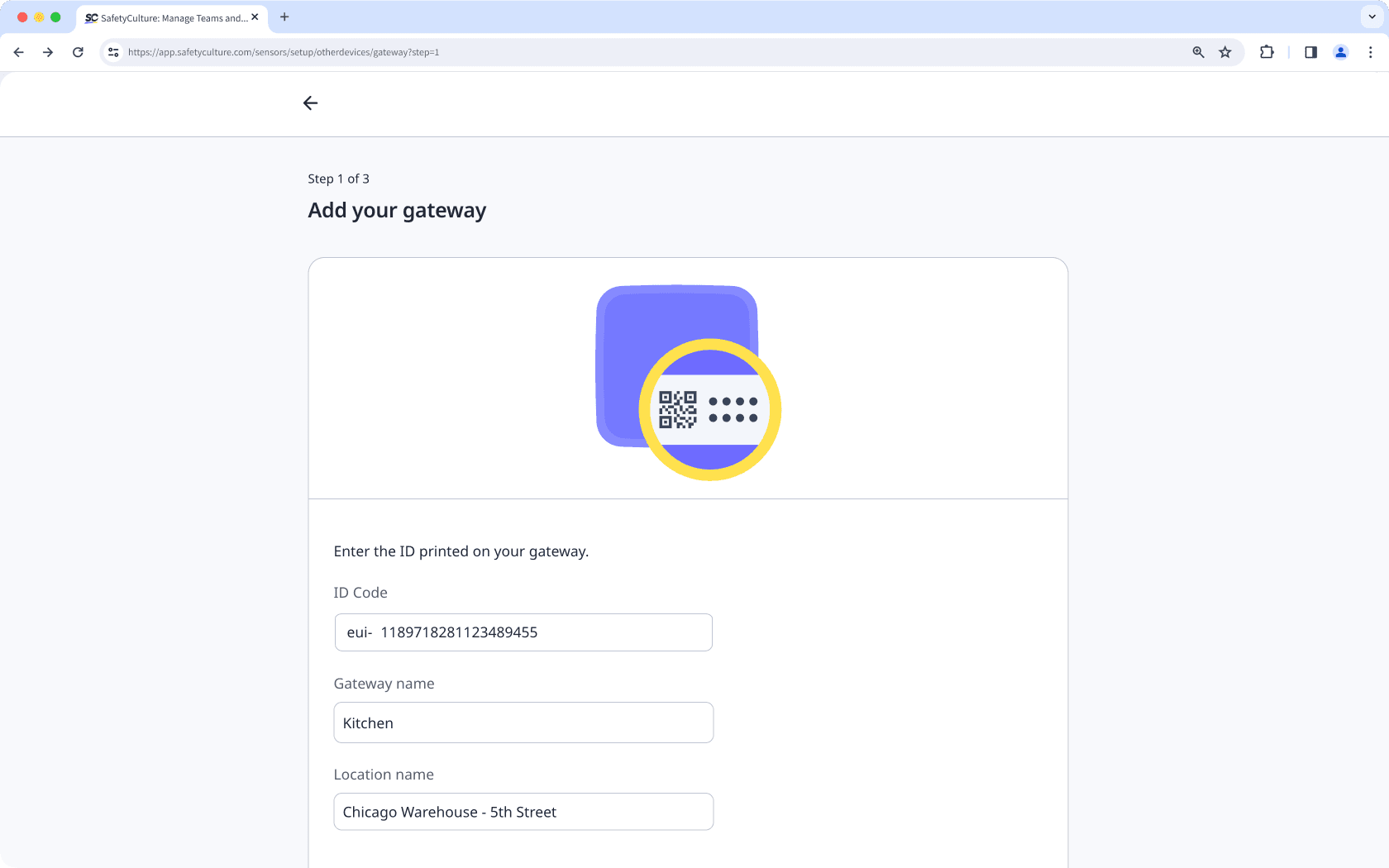
ID code: Enter your gateway's ID code. You only need to enter the number after "eui-" on your gateway.
Gateway name: Name the gateway. We recommend that you name the gateway after the area it will be monitoring. You can enter up to 40 characters.
Location name: Create or select a location. You can enter up to 40 characters. Sensor locations are separate from the sites in SafetyCulture.
Attach the antenna to your gateway and connect it to power. If you are using an Ethernet & Wi-Fi Gateway, connect it to your network with an Ethernet cable or Wi-Fi. If you are using a Cellular Gateway, place it where it has good mobile coverage.
Click Next.
Tap
Add more to start adding sensors or another gateway, or tap Done.
Open the mobile app.
Tap Sensors in the navigation bar or select it from
More.Tap
 at the upper-right of your screen and select Add sensor or weather.
Tap All brands under "Sensors purchased from SafetyCulture".
Select Gateway.
Enter the following fields:
ID code: Enter your gateway's ID code. You only need to enter the number after "eui-" on your gateway.
Gateway name: Name the gateway. We recommend that you name the gateway after the area it will be monitoring. You can enter up to 40 characters.
Location name: Create or select a location. You can enter up to 40 characters. Sensor locations are separate from the sites in SafetyCulture.
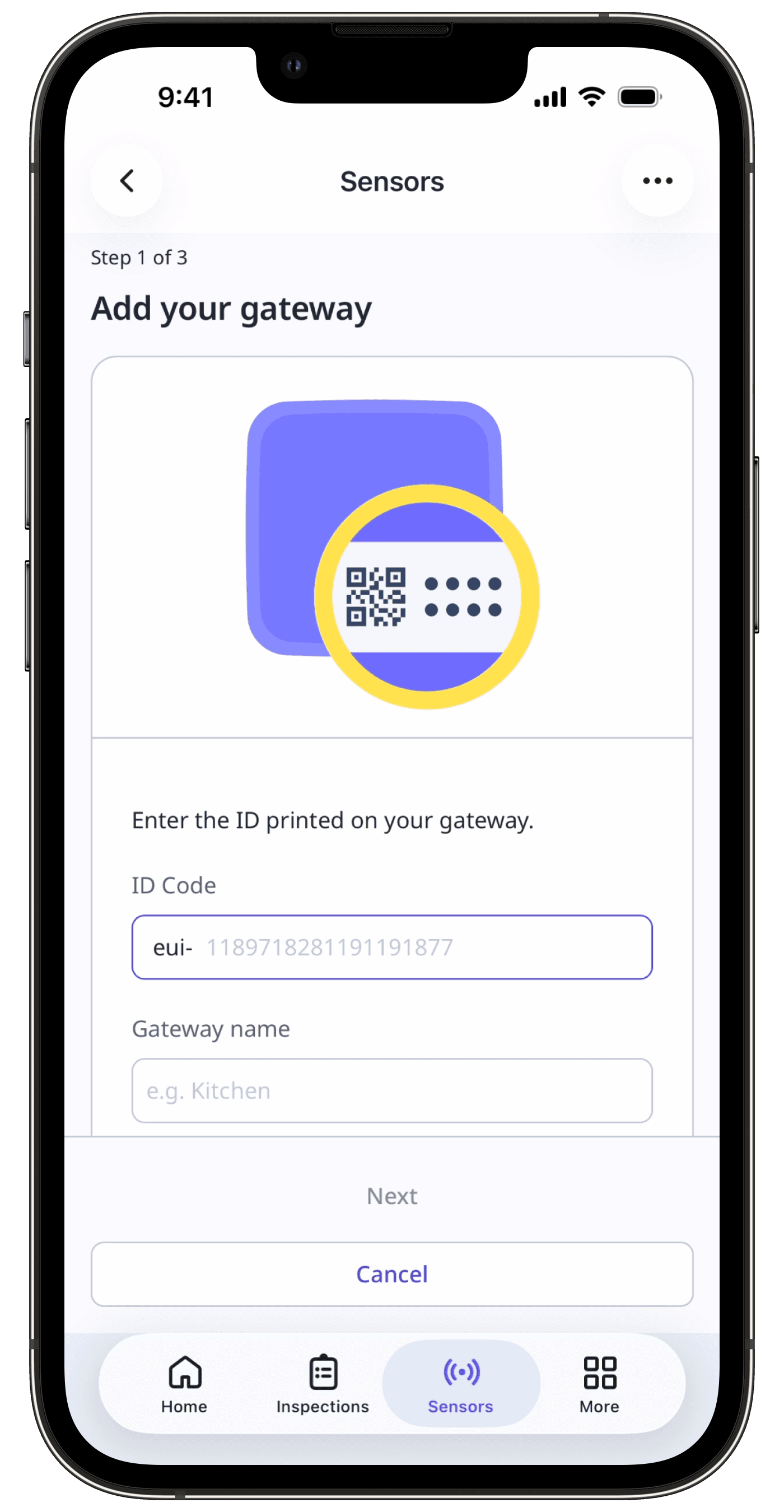
Attach the antenna to your gateway and connect it to power. If you are using an Ethernet & Wi-Fi Gateway, connect it to your network with an Ethernet cable or Wi-Fi. If you are using a Cellular Gateway, place it where it has good mobile coverage.
Tap Next.
Tap
Add more to start adding sensors or another gateway, or tap Done.
2. Add your sensor
Select Sensors in the sidebar or select it in
More.Click
Add sensor or weather on the upper-right of the page.Select All brands under "Sensors purchased from SafetyCulture".
Select Sensor.
Fill in the following fields:
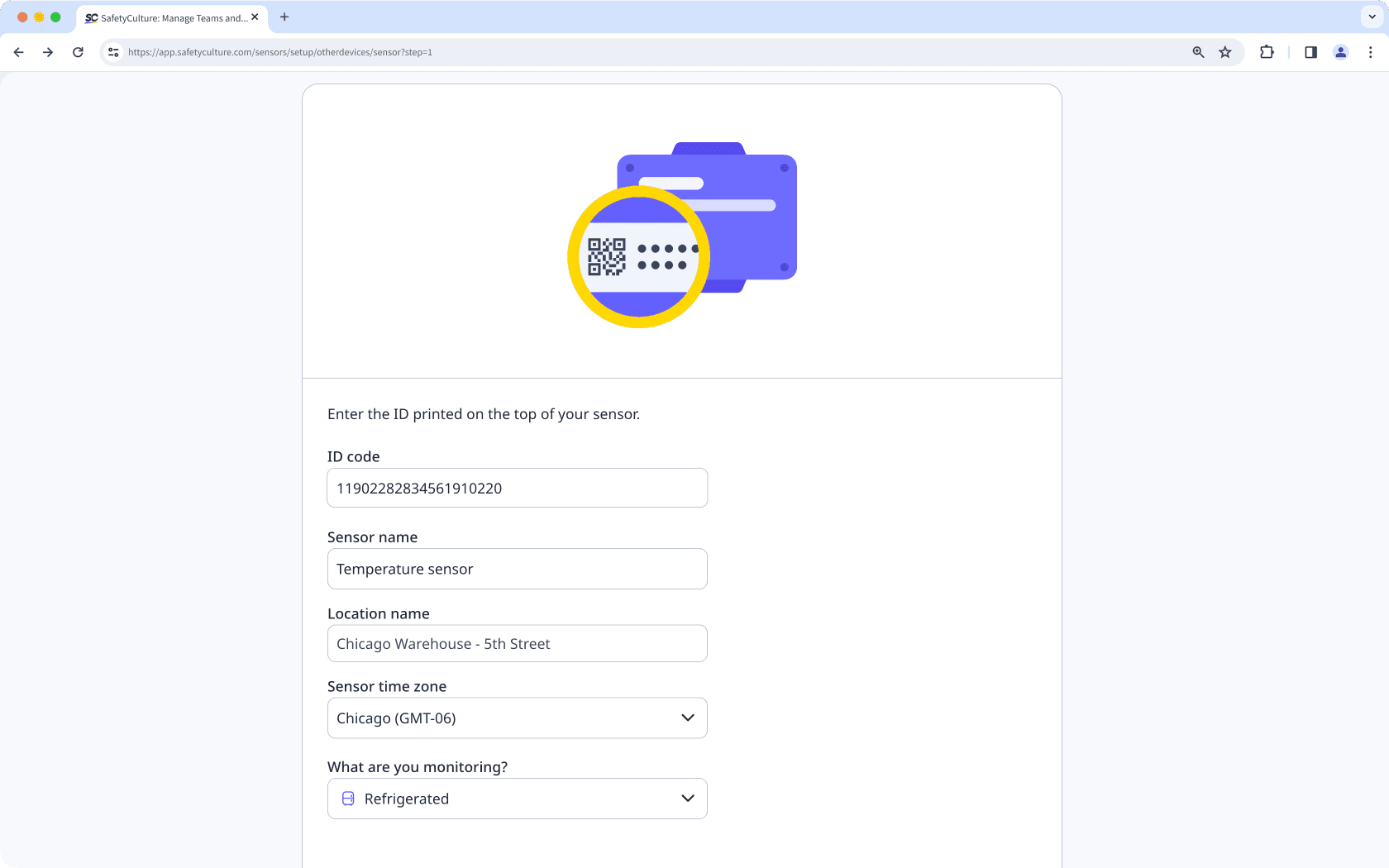
ID code: Enter your sensor's ID code. This is an alphanumeric code that begins with "DevEUI".
Sensor name: Name the sensor. We recommend that you name the sensor after the asset or area it will be monitoring.
Location name: Create or select a location. You can enter up to 40 characters.
Sensor time zone: Select the time zone of the sensor's location.
What are you monitoring?: Select the most appropriate category for the type of asset the sensor will be monitoring.
Click Add sensor.
Click Next.
Confirm that readings are coming in every 10 minutes.
Open the mobile app.
Tap Sensorsin the navigation bar or select it from
More.Tap
at the upper-right and select Add sensor or weather.Tap All brands under "Sensors purchased from SafetyCulture".
Select Sensor.
Fill in the following fields:
ID code: Enter your sensor's ID code. This is an alphanumeric code that begins with "DevEUI".
Sensor name: Name the sensor. We recommend that you name the sensor after the asset or area it will be monitoring.
Location name: Create or select a location. You can enter up to 40 characters.
Sensor time zone: Select the time zone of the sensor's location.
What are you monitoring?: Select the most appropriate category for the type of asset the sensor will be monitoring.
Tap Add sensor.
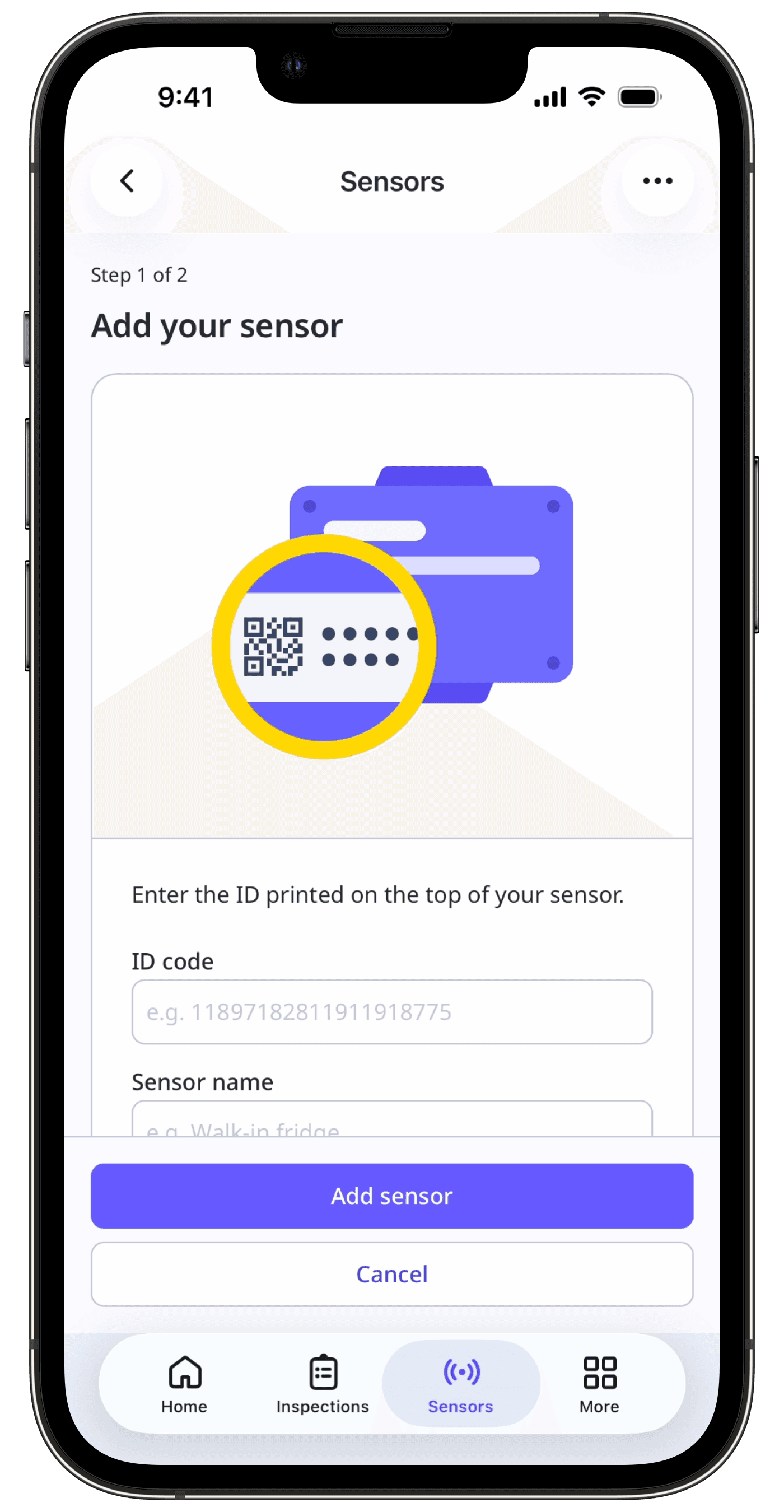
Tap Next.
Confirm that readings are coming in every 10 minutes.
3. Place your gateway
Once your gateway is added to your account and appears in the Sensors list, decide where to place it in your facility. To help your sensors stay connected:
Place the gateway within approximately 10-20 m/30-65 ft of the sensors it will communicate with.
Position the gateway between chest and head height. It is not required to be mounted. However, if you choose to do so, ensure it's still within range of your sensors.
Avoid placing the gateway inside metal enclosures, behind thick walls, or near communication devices.
For example, if you are installing sensors inside a cool room, you can place the gateway in a nearby office or corridor within range of that room, with as few barriers as possible between the gateway and the sensors.
4. Install your sensor
After confirming that your sensor is added and sending readings in SafetyCulture, you can install it in its permanent location.
When you install the sensor:
Avoid placing it directly in the path of doors, vents, or fans that create sudden temperature or airflow changes.
Place it where it is unlikely to be bumped, knocked, or moved accidentally.
Use the mounting method that best suits your surface, such as the supplied tape or cable ties for smooth and dry areas. You can also install it with screws on rough or unstable surfaces if you prefer.
Where you place the sensor depends on what you are monitoring. For example, for a cool room, place the sensor near the center of the room, away from doors and direct airflow from evaporators or fans. Then, for a fridge or freezer, place the sensor on a shelf inside the unit, away from the door seal and vents.
Using your sensor data
After you install your gateways and sensors and confirm they are sending readings, you can:
Use Sensors in the SafetyCulture web app or mobile app to review live and historical data for each sensor and check that conditions stay within the expected range.
Configure alerts so SafetyCulture notifies the right people when readings move outside that range, and use the recorded data as evidence for audits, investigations, and continuous improvement work.
Frequently asked questions
Gateways
The ID label on the gateway is easy to miss or may be hard to read. Look for the sticker on the top, side, or bottom of your gateway’s body. If the sticker is damaged or not visible, check the packaging for details. If you are still unable to find the code, please contact our customer support team for assistance.
The code may be incorrect, or you may be using the code from the wrong device. Make sure you are entering the ID from the gateway, not from a sensor. Enter the characters exactly as they appear on the label, without spaces. If the label includes "eui-", enter only the characters after that prefix. For Monnit hardware, follow the steps in the Monnit guide.
Ensure you've entered the ID code of your gateway correctly and that it hasn’t already been added to your SafetyCulture organization. If you continue experiencing problems while adding your gateway, please contact our support team for assistance.
The steps to turn sensors and gateways on, off, or reset vary depending on your device. If you've purchased devices from SafetyCulture, you can refer to our comprehensive guide for detailed instructions tailored to your sensors or gateways.
Sensors
The DevEUI label may be on the front or back of the sensor and can be easy to miss. Look for the sticker on the front or back of your sensor. The DevEUI is usually a long combination of letters and numbers. If the label is damaged or you cannot read it, please contact our customer support team for assistance.
The DevEUI may have a typo, or you may be using the code from the wrong device. Make sure you are entering the ID from the sensor, not from a gateway. Enter the DevEUI exactly as it appears on the label, without spaces. If you are using Monnit sensors, follow the instructions in the Monnit guide.
The sensor may already be linked to a gateway or location in your current organization or in another organization. Check if the sensor already appears in your Sensors list and confirm that you are signed in to the correct SafetyCulture organization. If the sensor needs to be moved or removed from another account, contact our support team for assistance.
Was this page helpful?
Thank you for letting us know.