
- Administration
- Organization settings
- Update my organization's details
Update my organization's details
Learn how to update your organization details via the web app to keep key information up to date.Why should I update my organization's details?
Keeping your organization details up to date helps keep your name, primary contact information, and branding accurate across SafetyCulture. It also helps make sure important notifications, such as legal and security alerts, are sent to the right people.
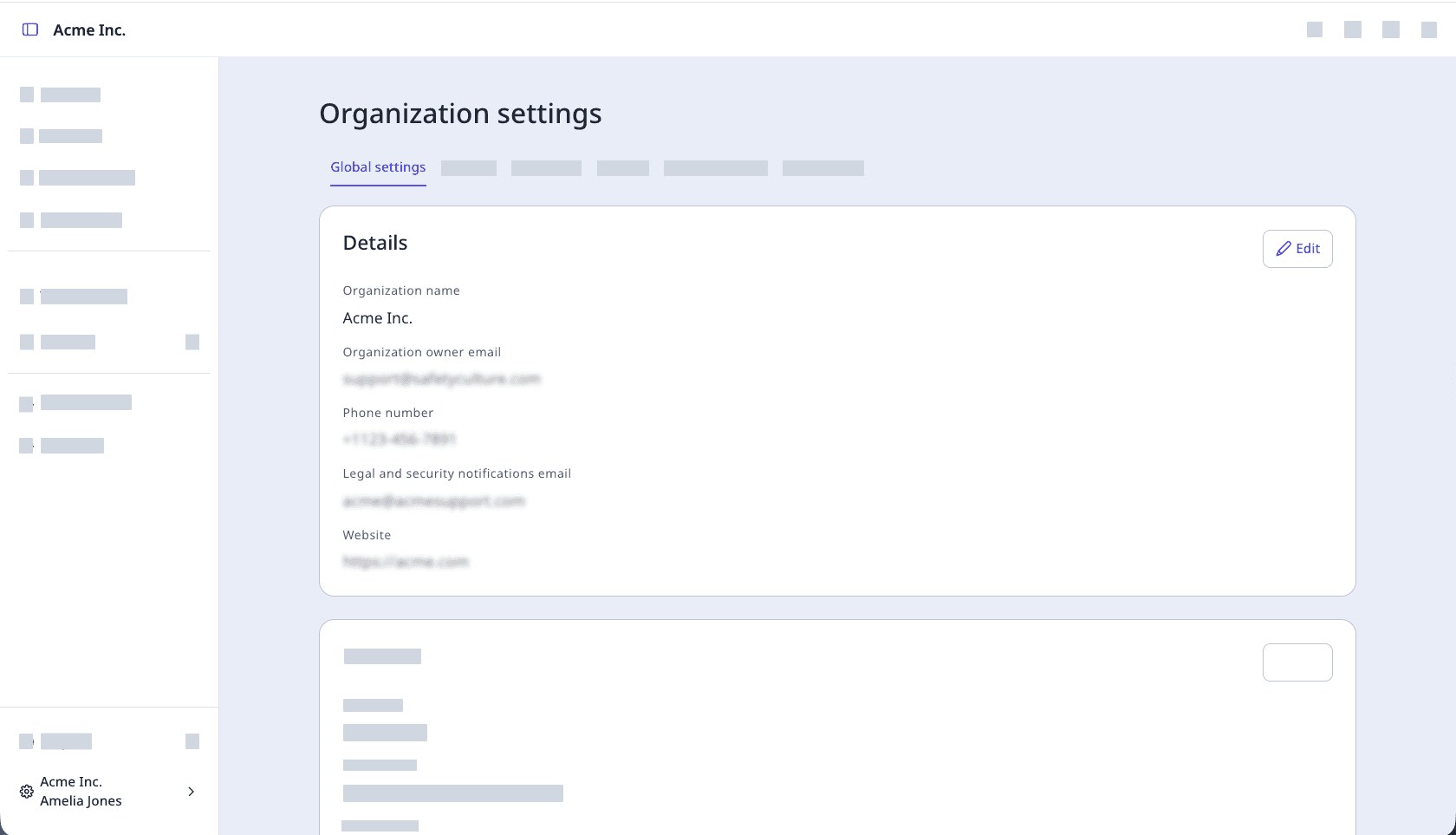
For example, after a leadership change, you can update the organization owner’s email and phone number so system alerts go to the new owner instead of a former employee.
Update your organization's details
Click your organization name on the lower-left corner of the page and select Organization settings.
Select at the top of the page.
Click
 Edit on the upper-right of the "Details" section to update your organization’s details:
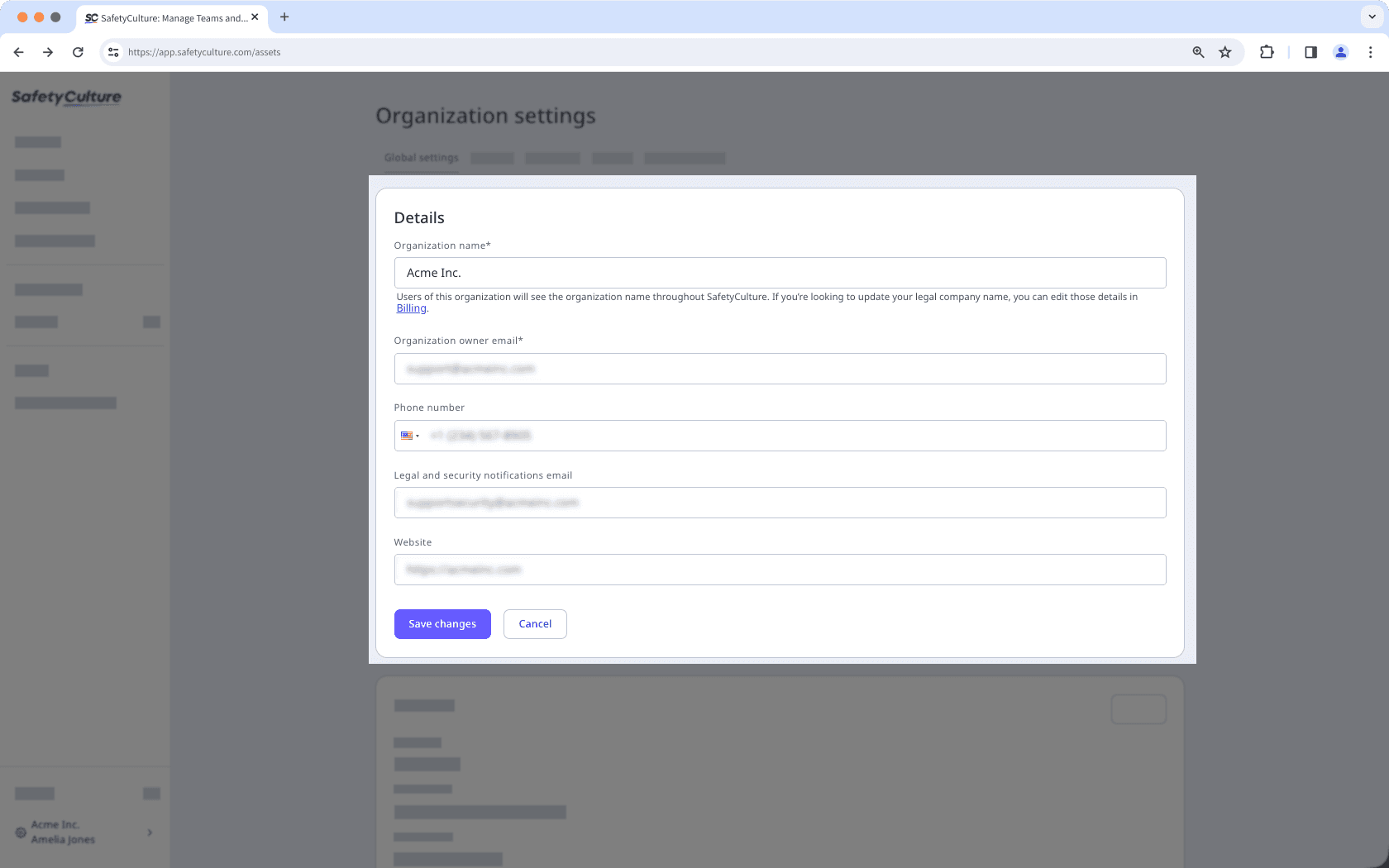
Organization name (required): The name of your organization.
Organization owner email (required): The primary contact's email for your organization.
Phone number: The contact phone number for your organization.
Website: The website for your organization.
Click Save changes.
Was this page helpful?
Thank you for letting us know.