
Share templates with users in other organizations
Learn how to share templates or give template access to users outside your SafetyCulture organisation via the web app to collaborate more easily and keep inspection processes consistent.Starting December 11, 2025, new SafetyCulture organizations no longer have the Give external access option by default. If you need to share templates externally and don't see this option in your account, contact your account manager or customer success manager to have it turned on for your organization.
How does sharing templates externally work?
We understand that you may need to occasionally work with users outside your organization and collaborate to complete inspections from templates. With SafetyCulture, you can share your templates with users from other organizations so they can follow the same flows you've built for their checks.
When sharing templates externally, your options depend on whether the user is part of an organization in the same data center as you or not.
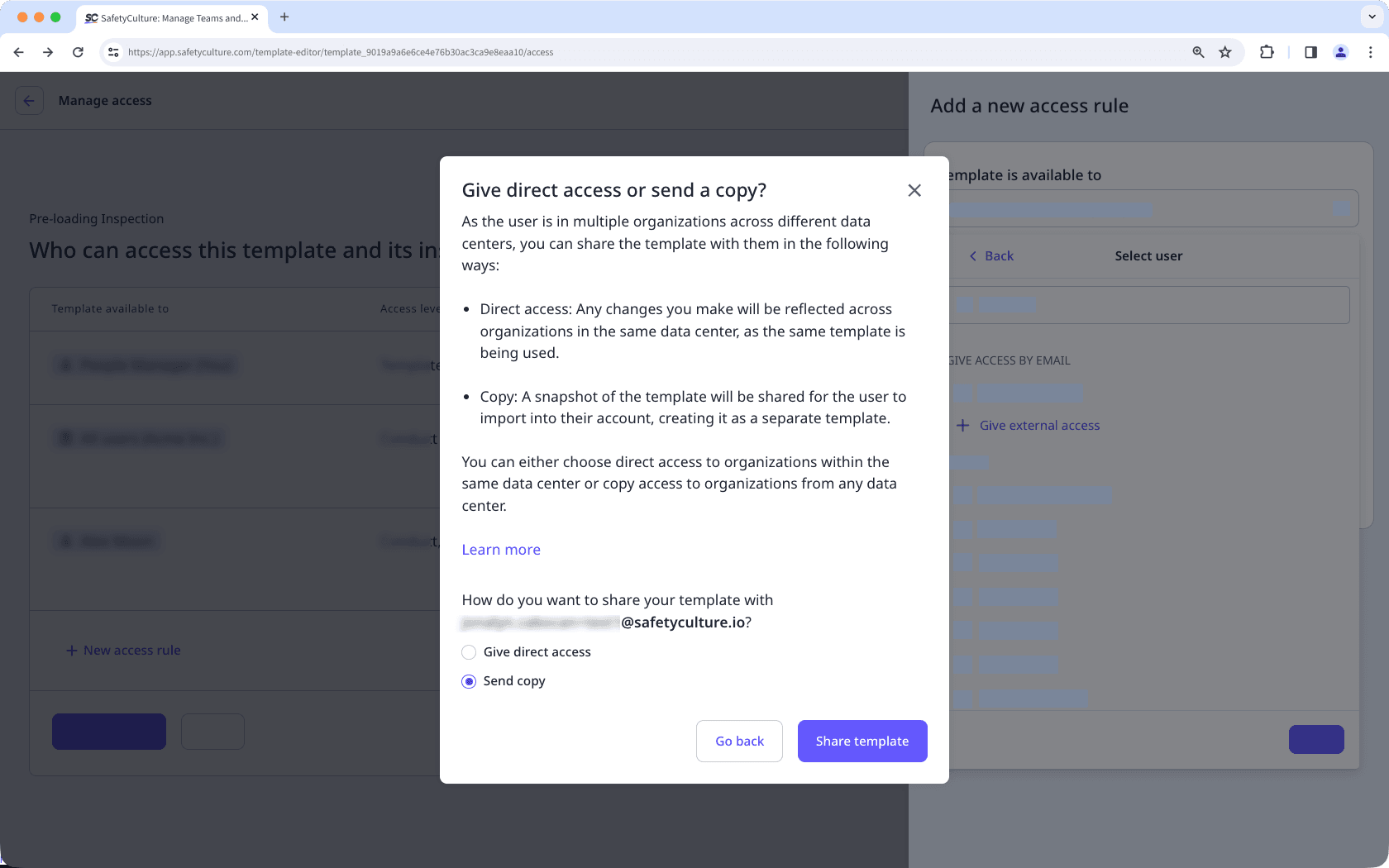
Direct access: This is available for organizations in the same data center as you. Any changes you make will be reflected across organizations in the same data center, as the same template is being used.
Copy: This is available for organizations in a data center different from yours. A snapshot of the template will be shared for the user to import into their account, creating it as a separate template.
If you have direct template access set up for a template, you can edit access rules to have inspection results from users in other organizations available to team members in your organization and vice versa.
Share a template with a user in another organization
Select
 Templates in the sidebar or select it in
  More.
More.Click the template and select Manage access in the side panel.
In the access builder, click
 New access rule at the bottom of the page.
In the rule panel, click the dropdown menu under "Template is available to", select
 Users, then click Give external access.
In the pop-up window, enter the email of the other organization's user and click Give access.
The options that would appear depend on whether the user's organization is in the same data center as you or not.
Same data center: You can either give the user direct access to the template or send a copy.
Different data centers: You can only send a template copy.
Click Share template or Send copy.
Click Done in the dropdown menu.
Select the template Access level you want to give.
Click the dropdown menu under "Inspection results will be available to" to search and select the groups or users who should have access to the inspections conducted by the external user above.
Click Done in the dropdown menu and select the inspection Access level you want to give.
Click Done in the rule panel.
Click Save and apply.
In the pop-up window, click No, apply to future only.
This sends an email to the external user. Please note that the user must accept the invitation to finalize the external template access.
Limitations
Questions with organization-specific data, such as Global Response Sets, sites, actions, and assets are not available across organizations.
Advanced access rules can't be set up across organizations.
Inspections from externally shared templates can’t be viewed in Analytics.
Applying access rules retroactively for externally shared templates would have to be done from both the organization sharing the template, and the one being shared with.
Override permissions only apply to data created in the same organization. To edit or delete externally shared templates or inspections, users must have the appropriate access levels set up.
Notify logic does not keep its selected recipients when you share a template with another organization. After the other organization receives the template, they must review the logic and select recipients in their own organization.
Was this page helpful?
Thank you for letting us know.