
- Using SafetyCulture
- Inspections
- Automatically save photos taken in the SafetyCulture mobile app
Automatically save photos taken in the SafetyCulture mobile app
Learn how to automatically save the photos you take in the mobile app as a way to backup your media on your device.What you'll need
Save photos to your mobile device
Open the mobile app.
Tap your user profile icon at the upper-right corner of your screen.
In the pop-up menu, select Settings.
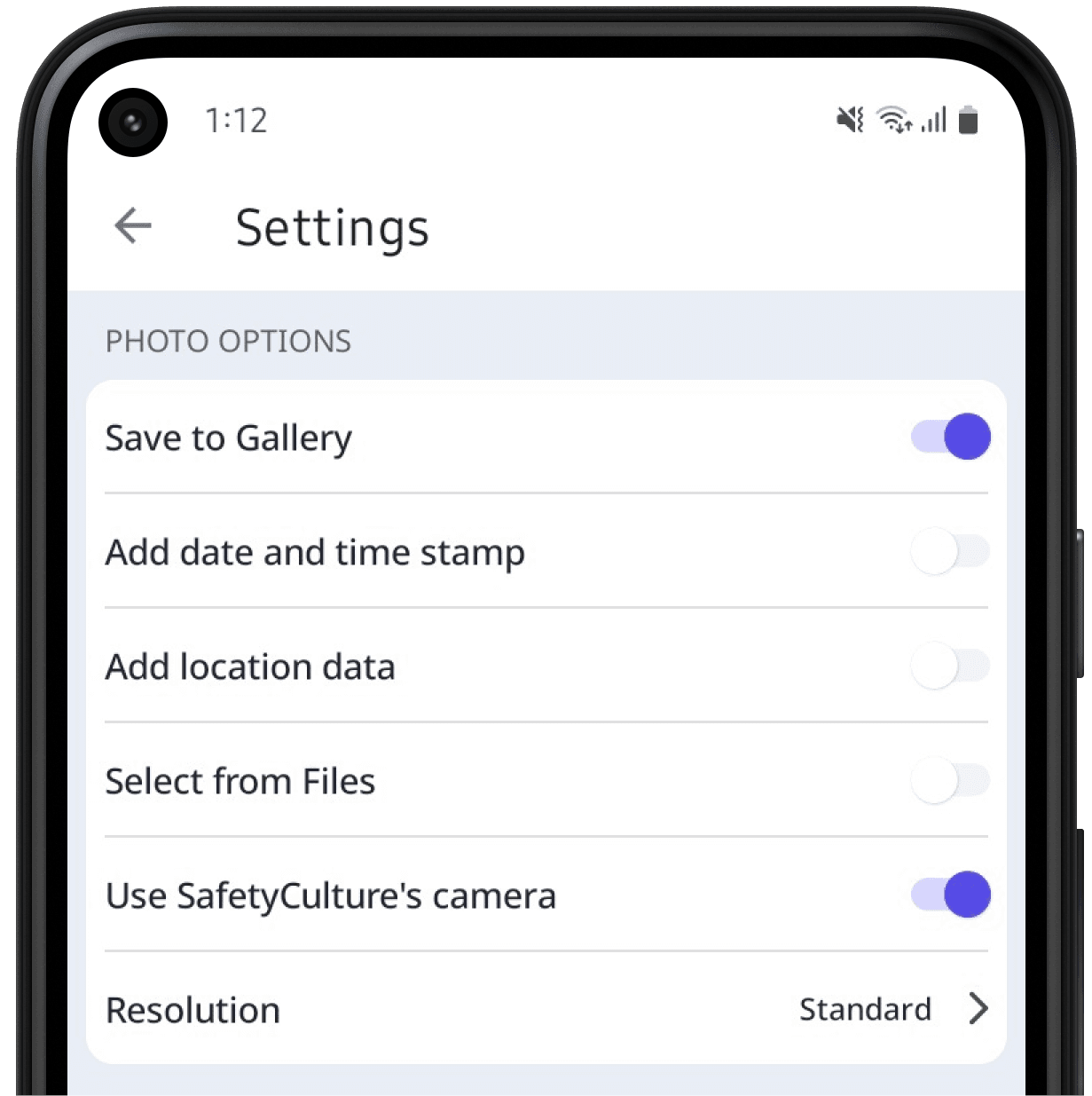
Under the “PHOTO OPTIONS” section, turn Save to Gallery on.
Open the mobile app.
Tap your user profile icon at the upper-right corner of your screen.
In the pop-up menu, select Settings.
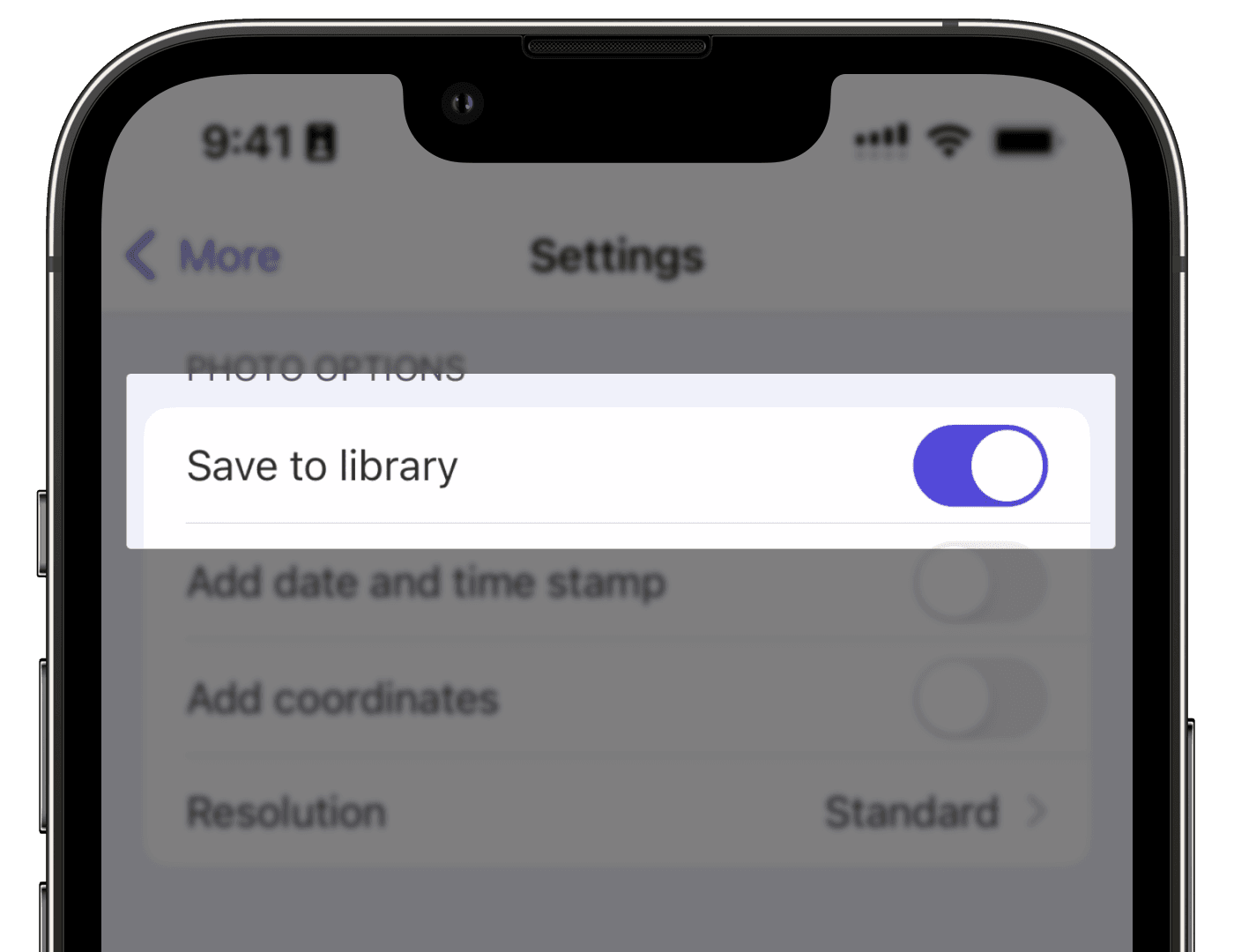
Under the “Photo Options” section, turn Save to library on.
Saving photos taken in the SafetyCulture mobile app can take up storage space on your device over time. We recommend periodically removing old photos to optimize your device storage.
Need more help?
Was this page helpful?
Thank you for letting us know.
In this article