
- Using SafetyCulture
- Inspections
- Duplicate or copy inspections
Duplicate or copy inspections
Learn how to duplicate inspection responses via the web app and the mobile app to quickly start new inspections using existing information without copying responses manually.What does it mean to duplicate inspections?
Duplicating an inspection creates a copy of an existing inspection, including its responses, notes, and media attachments. This allows you to quickly start a new inspection using existing information, such as when repeating similar inspections, without manually copying responses.
The following behaviors apply to each duplicated inspection:
Actions you create in the inspection aren't duplicated.
The inspection's duration will continue on from the original inspection's duration rather than resetting.
The inspection's document number remains the same as the original inspection's until it's edited.
What you'll need
"View" inspection access level at a minimum
"Conduct" template access level, at a minimum, for the template used to conduct the inspection
If you don't have the option to duplicate inspections, the option may be turned off for your organization. Contact your admin if you need to duplicate inspections.
Duplicate an inspection
Select
 Inspections in the sidebar or select it in
  More.
More.Click
 on the inspection's right-hand side.
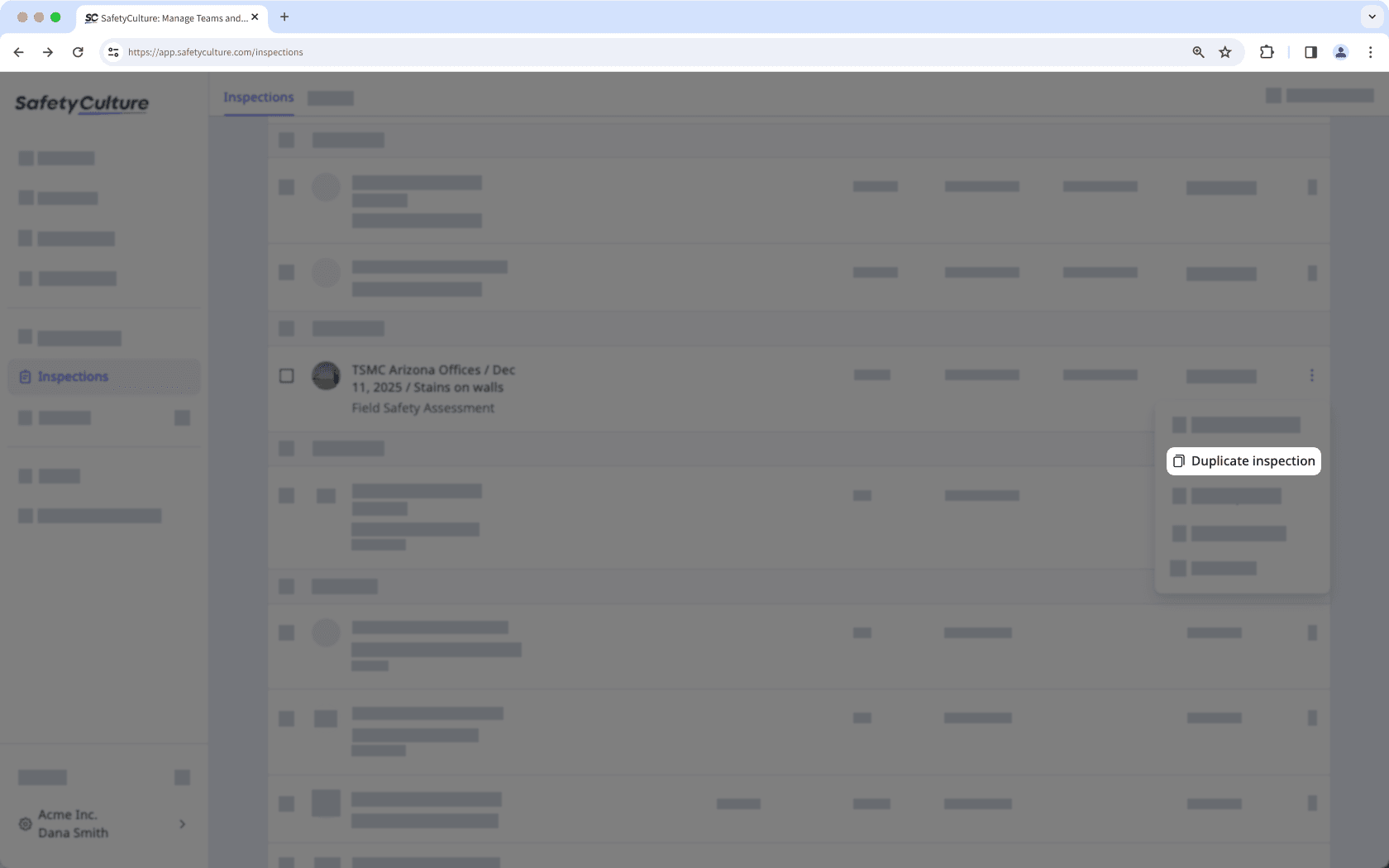
Select Duplicate inspection.
Open the mobile app.
Tap
 Inspections in the navigation bar or select it from More.
Select In Progress & Complete tab at the top of your screen.
Tap the inspection you want to duplicate.
Tap
or  at the upper-right of your screen and select
  Duplicate.
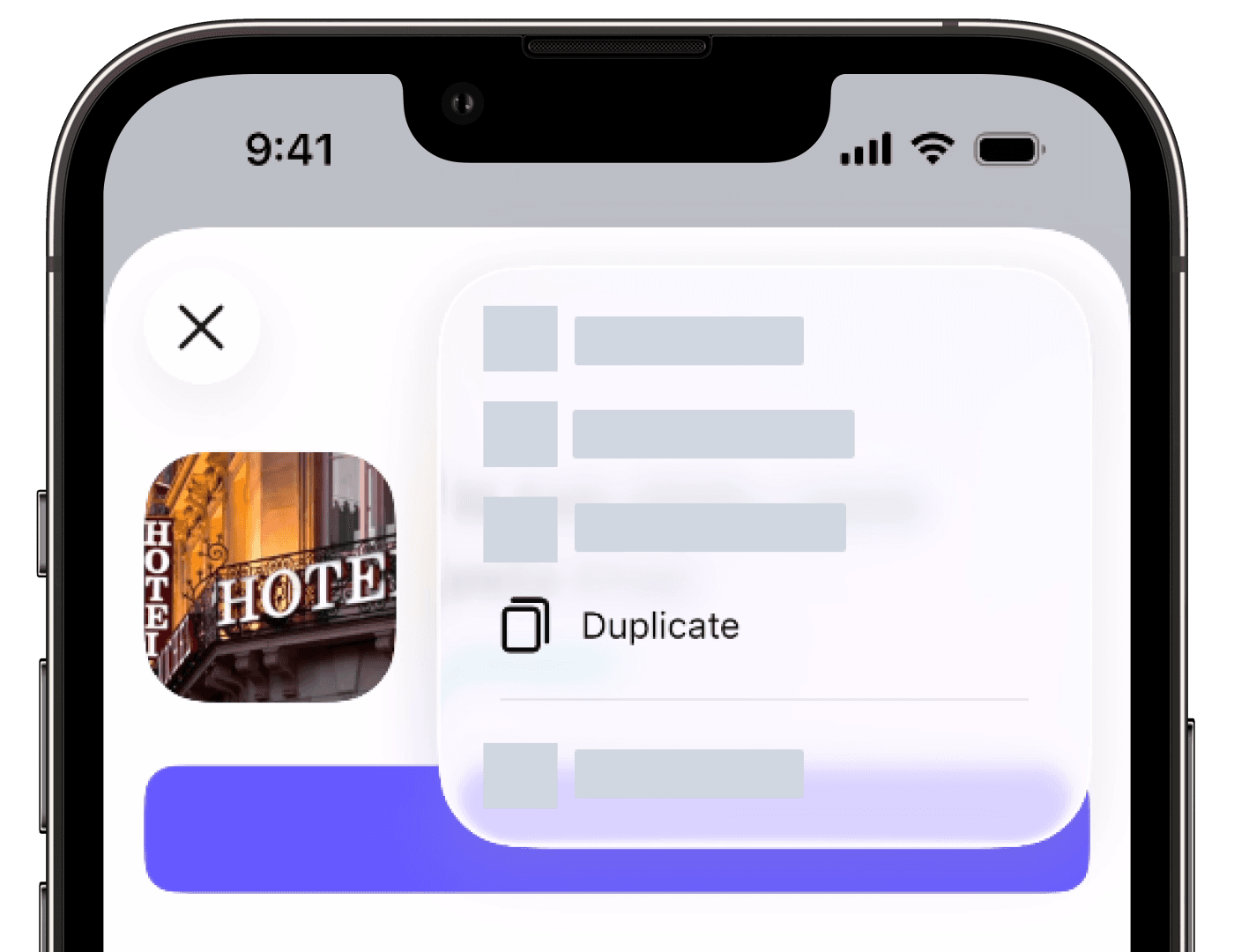
An inspection can’t be duplicated if its template has been deleted.
Was this page helpful?
Thank you for letting us know.