
- Fix a problem
- Troubleshooting guide
- Manually sync the SafetyCulture mobile app
Manually sync the SafetyCulture mobile app
Learn how to manually sync the SafetyCulture mobile app when your data isn't updating across devices or platforms.Why is syncing required for the mobile app?
Syncing must be done on the mobile app to guarantee that the data on your mobile device is aligned with the data on the web app. This ensures that the information you access on your account is always up to date, no matter where you log in from.
Here are a few things to check to guarantee successful syncing:
The SafetyCulture mobile app is up to date.
Your mobile device has an internet connection.
What you'll need
Manually sync the mobile app
Open the mobile app.
Tap
 Home at the bottom of your screen.
Tap your user profile icon at the upper-right corner of your screen.
In the pop-up menu, tap
 at the bottom of the screen to start the manual sync.
 Wait for the syncing progress bar to complete.
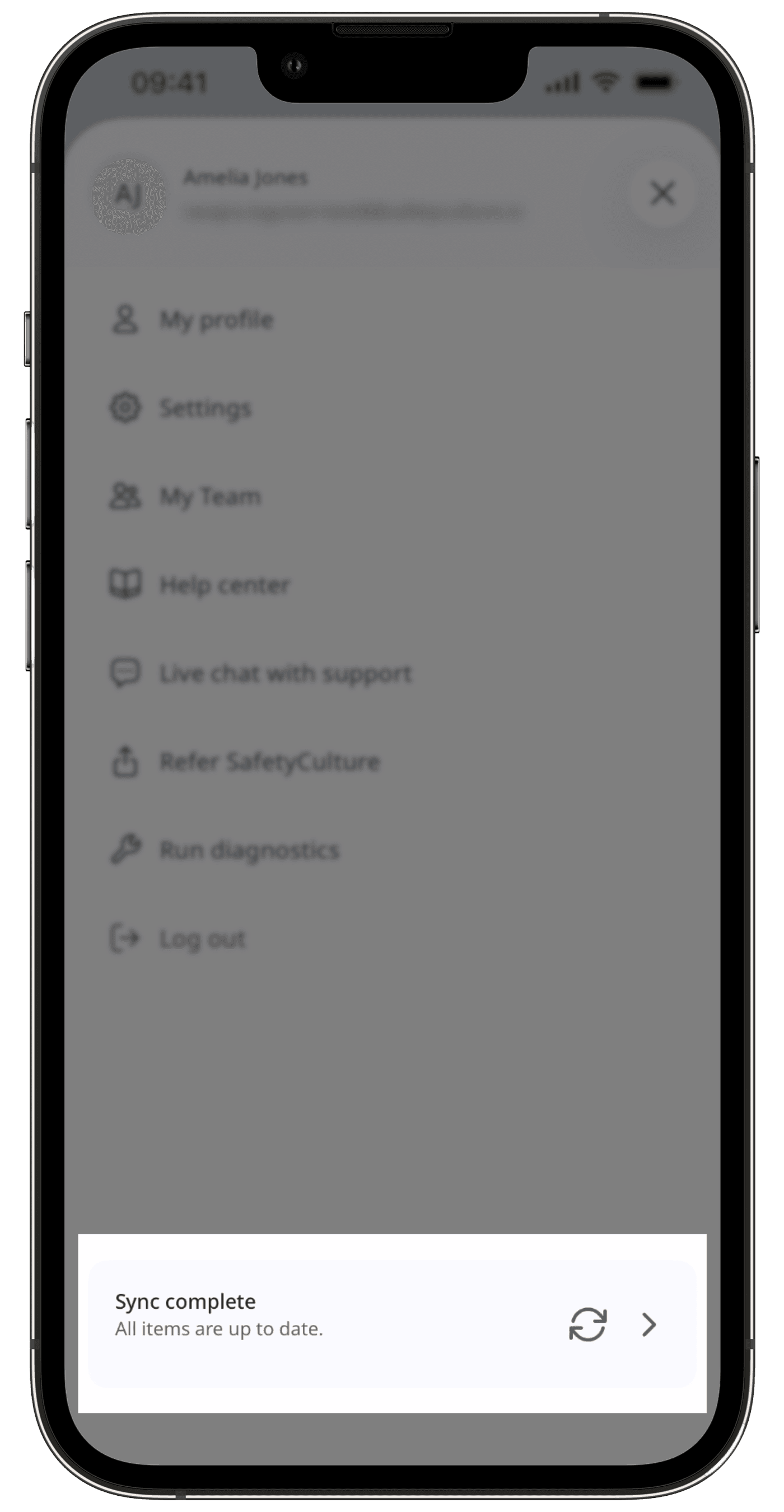
If you have any unsynced data, the app will notify you when you minimize the app to the background, log out, or switch to another organization.
Frequently asked questions
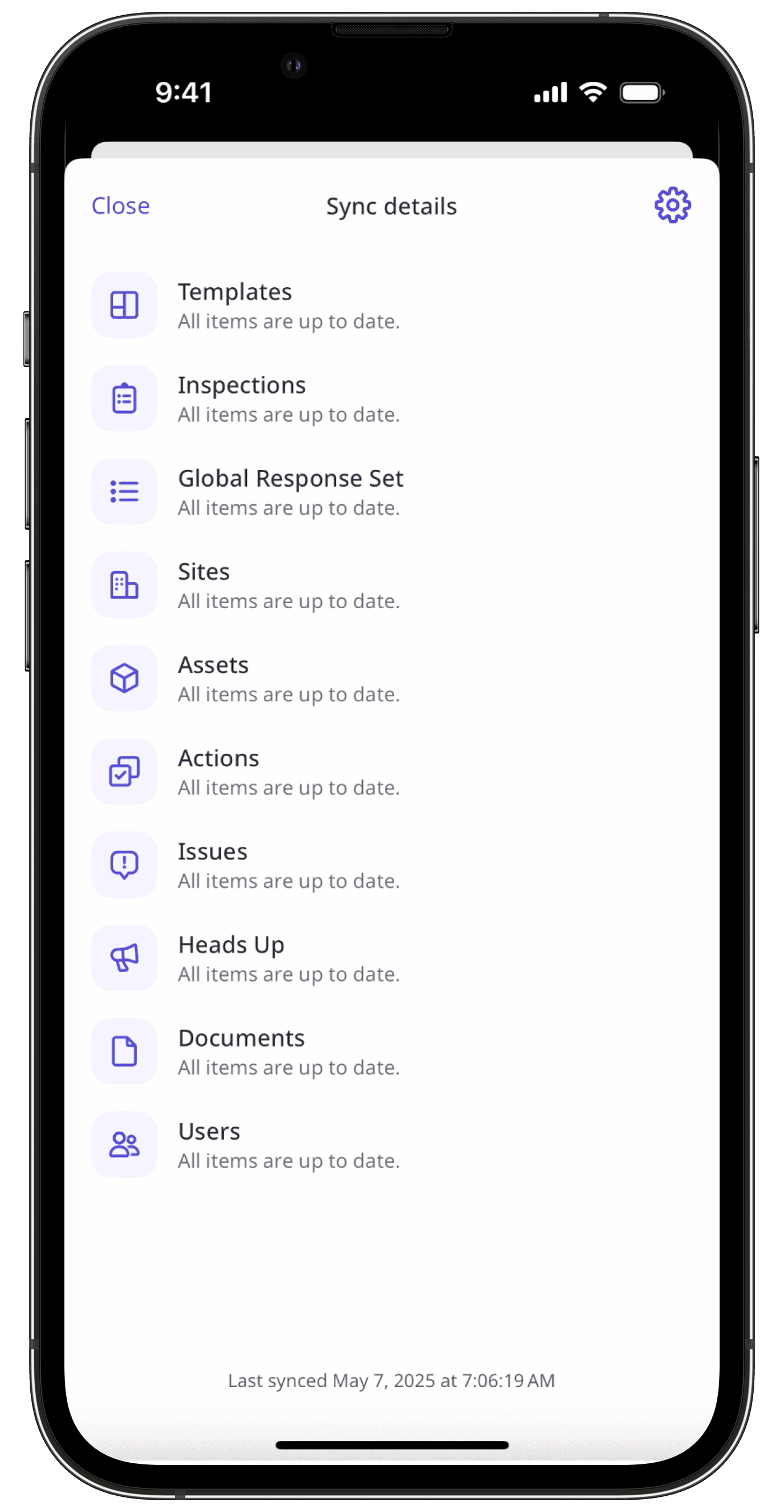
You can check the syncing status of items, such as templates and inspections, from your user profile menu.
Open the mobile app.
Tap
Home at the bottom of your screen.Tap your user profile icon at the upper-right corner of your screen.
Tap the Sync bar.
View the syncing status of each feature and when your data was last synced.
If syncing fails, first check that your device has an active internet connection.
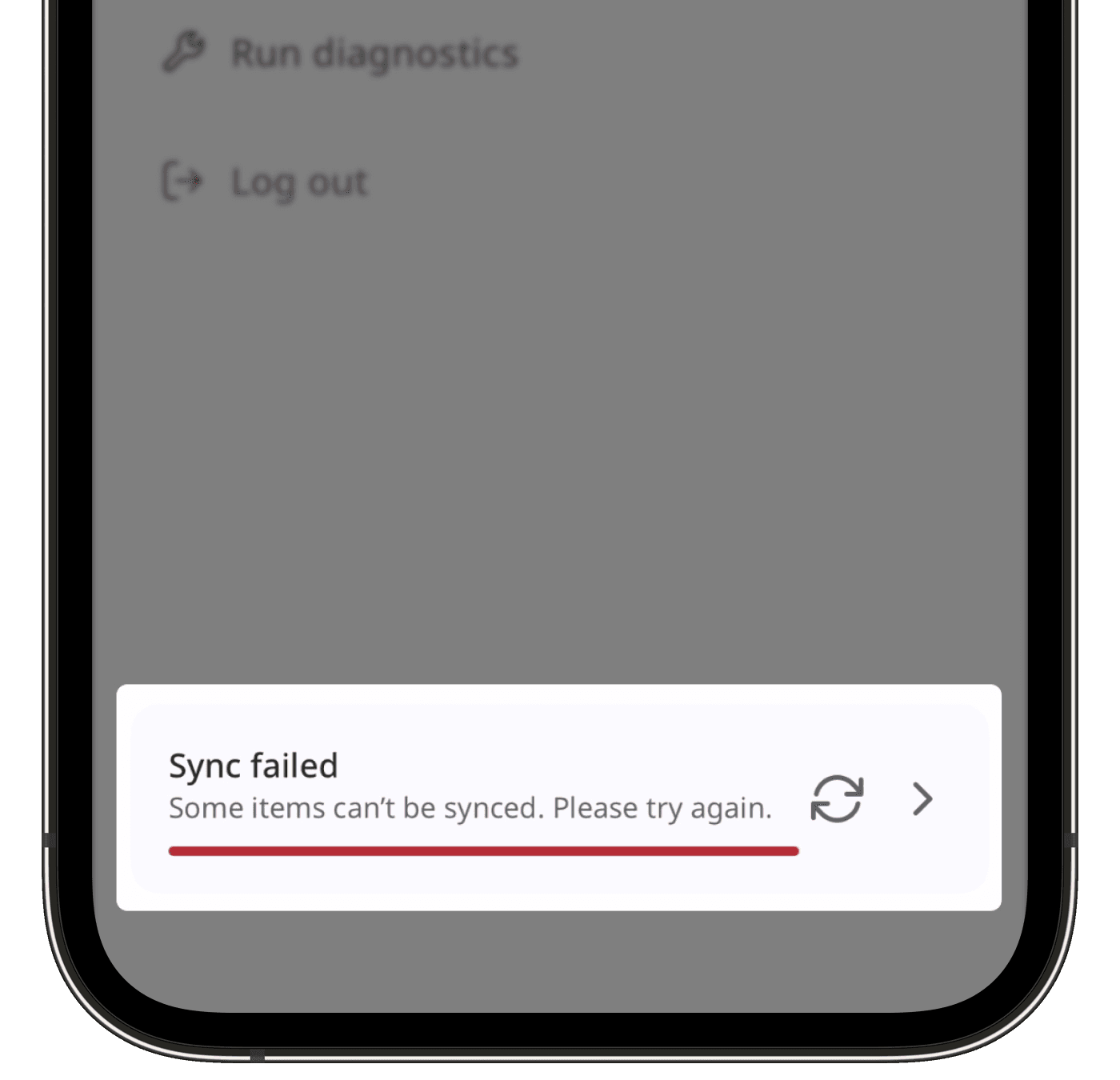
If you're connected and the issue persists, try any of the following options:
Log out of the mobile app and then log back in.
Tap the syncing progress bar and see which specific items have failed to sync, then attempt to resolve them individually.
Please do not delete or uninstall the mobile app unless our customer support team instructs you to, since it can cause data loss.
Was this page helpful?
Thank you for letting us know.